 Leta
Leta Assist
Leta Assist lets an AI app already on the computer, a desktop chat app or a coding tool, build and change parts, assemblies and drawings in the Leta window in front of it. The app writes Leta script, and Leta builds each line as an ordinary feature, mate, view or dimension, so what it makes has a full history to change by hand.
How it works
The app connects through MCP, an open standard many AI apps use to work with programs on the same computer, and its own model does the thinking. Leta runs each script the app sends in the Leta window in front, as if the user had made each step.
- For a desktop chat app or a coding tool that can use programs on the computer through MCP
- Each step a feature in the history, a mate, a view or a dimension, open to editing by hand afterward
- Each script the app runs is one undo step, and the app can undo its own last run
- A line that cannot build is taken out, and the run stops there with Leta's reason, so the app can correct that line
- Asked for a change, the app changes what is there in place rather than building it again
- describe tells the app the document as it stands: features and their numbers, failures, size and volume, an assembly's mates and freedoms, where each drawing view stands
- look gives it a picture: a part from any standard direction, an assembly as it stands, a drawing sheet as it prints
- Leta's status line says what the app did with each request
An assistant inside Leta itself, working from plain-language requests with a language model on the computer, is not built yet. Leta Assist today is the connection for AI apps the user already has.
Leta script
Leta script is a small Python in which every word is one of Leta's commands. Numbers are millimeters and degrees, and arithmetic on parameters is kept as an expression, so a part built from parameters follows them when they change.
A 60 × 40 × 3 plate with four M3 clearance holes 5 mm in from the corners, its corners rounded 4 mm, from the part guide:
param width = 60
param depth = 40
param thick = 3
base = sketch(TOP)
base.rectangle(width, depth)
plate = extrude(base, thick)
x = width / 2 - 5
y = depth / 2 - 5
hole(on=plate.top,
     at=[(x, y), (-x, y),
         (x, -y), (-x, -y)],
     size="M3", through=True)
round(plate.edges(parallel="Z"), 4)- The plate's sketch dimensioned by width and depth, so
param width = 70in a later run makes it wider and moves the holes - Coordinates are the part's own, whatever plane a sketch is on
- Sketch dimensions measured from the part's origin, as a user would place them
- Faces and edges picked by which way they face, their kind and size, or the point they are nearest
- No imports, files or network: a script can only add, change and ask about what is in the document
- The language the hardware library's parts are written in
Parts
In a part window the app has the part words: sketches, features and the selectors that pick faces and edges.
- Sketches on planes or faces: rectangles, circles, outlines with arcs, lines, splines and points
- Extrude, revolve, and holes simple, counterbored, countersunk or tapped, in ISO and inch sizes, fine pitches such as M8x1 included
- Modeled threads with fits for printing
- Round, chamfer, shell, draft, rib, mirror, and linear and circular patterns
- Sweeps along paths and helixes, blends, curves from equations, and 3D sketches
- Splits, thickened surfaces, and several bodies
- Welded tube frames, every end coped or mitered to fit
- Parameters, relations, configurations, materials and appearances
- Project parameter files and their Project Sets, made, connected and set
- A part of many bodies analyzed, and made into parts and an assembly: rows and rings as patterns, the rest held by mates that follow its parameters
- A feature's numbers, a sketch's dimensions and a hole's size changed in place
- Features suppressed, resumed, deleted, renamed, and new ones put in ahead of an existing one
Assemblies
In an assembly window the app places saved parts and holds them with mates, made as the mate strip makes them and solved at once.
- Parts and sub-assemblies placed, the first one fixed
- Every mate type, the joints (fastened, revolute, slider, cylindrical, ball, planar, pin slot) with limits and drives, and the mechanical relations: gear, rack and pinion, screw, cam, slot, universal joint and belt
- A mate that cannot hold is taken out, with the reason
- Patterns, circular patterns and mirrors, opposite-hand parts written beside their seeds
- Screws, nuts, washers and more from the hardware library, seated in holes
- Belts and roller chain round pulleys and sprockets, and routes of pipe, tube, hose and cable
- Exploded views, assembly holes and cut-outs, groups, display states, motors and motion studies
- Joints inside flexible sub-assemblies driven from the assembly above
- Config Tables, Partial Reps and sub-assemblies
- Interference, clearance, mass, the bill of materials and measurements asked for and read back
Drawings
In a drawing window the app lays out sheets of views and annotates them with the drawing window's own tools, so every dimension stays on its edge as the model changes.
- Sheets ISO A4 to A0 and ANSI A to E, at scales such as 1:2
- The four standard views laid out as File > New Drawing lays them
- Base, projected, section, detail and auxiliary views; offset, aligned and removed sections; crops, breaks and broken-out sections
- Display styles, exploded views and configurations, view by view
- Dimensions by the Dimension tool's rules, overall sizes, baseline, chain and ordinate sets, arranged in rows
- Model annotations, callouts, center marks, notes and balloons, their labels placed clear of what is already on the sheet
- Bills of materials, and revision, hole, bend and config tables
- Geometric tolerances, datum features, surface finish and weld symbols
- Sketched lines, revision clouds, hatching, line styles, layers and the title block's fields
- Crowded sheets found and tidied: words over words and lines through values moved clear
Files
The app can start, open, list, save and close Leta documents. It saves only under a new name, and never over another file.
- New parts, assemblies and drawings started, a drawing with its model's standard views
- The document in front saved under a name the app gives; a name already taken in that folder is refused
- Leta files opened, and a folder's Leta files listed with the documents open in Leta
- A saved document closed; one with unsaved changes is refused
- The folder last saved into used for the next open, place and save
- No file exported or deleted
The built-in guide
The app is told to read Leta's guide before its first run, and asks for the topic it needs. The guide is built into Leta, so it matches the version installed.
- part: the language, coordinates, every part word, and changing a part in place
- assembly: placing parts, references, every mate type, patterns, hardware, belts and routes
- drawing: sheets, views, the edges annotations stand on, dimensions, symbols and tables
- projects: planning a machine of many parts, one frame for the whole machine, the order of work, and checking
- mechanisms: which joint or relation for what, driving joints and measuring, flexible sub-assemblies
- fasteners: the hardware families, the holes each fits, and washers, nuts and studs patterned into holes
- shapes: turned profiles and fins, springs, involute gears, twisted blades, cams and more
- Every example in the projects, mechanisms, fasteners and shapes topics is built by Leta's own tests
Connecting an app
Options > Leta Assist turns the connection on, off by default, and walks through adding Leta to an app's settings file in six steps. Leta is added there as a program on the computer, not as a web address.
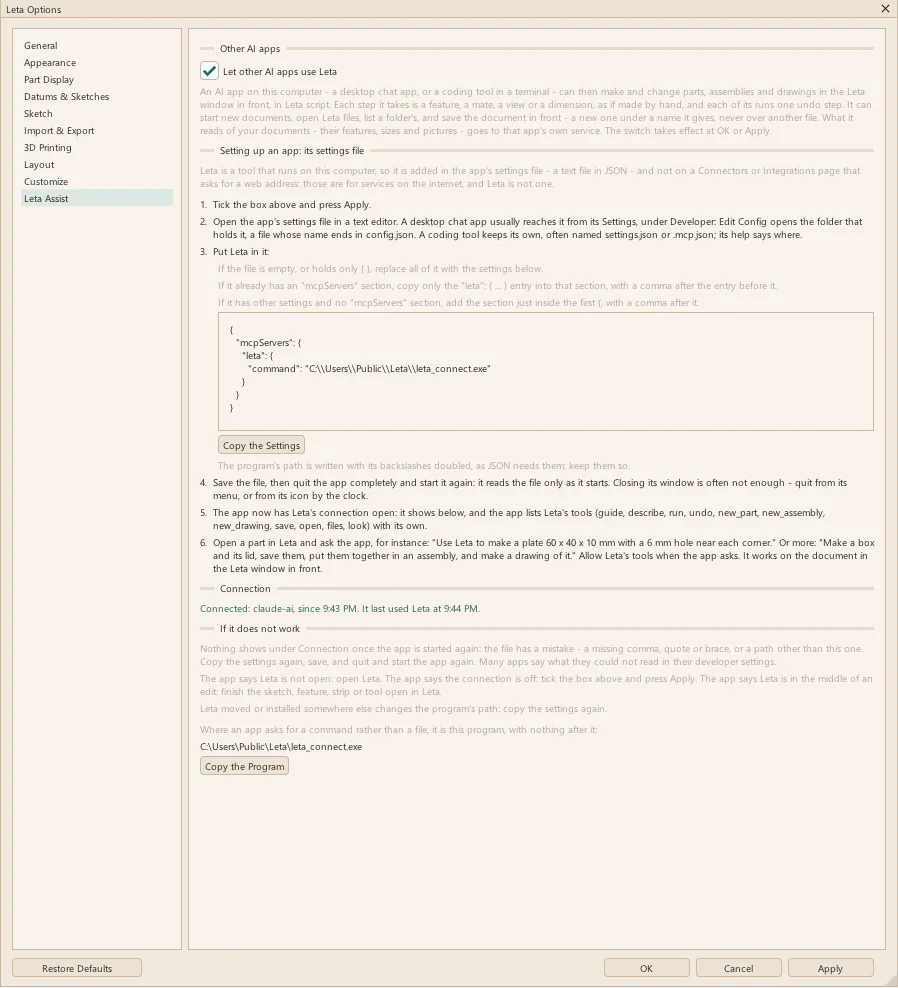
- 1. Tick Let other AI apps use Leta and press Apply
- 2. Open the app's settings file, a JSON file; a desktop chat app usually reaches it from its developer settings
- 3. Put Leta's entry in it, from Copy the Settings, whether the file is empty or already holds other settings
- 4. Save the file, then quit the app completely and start it again
- 5. The app lists Leta's tools, and the page shows it as connected
- 6. Open a document in Leta and ask the app for something
- The page says which app is connected, since when, and when it last used Leta
- What to check when it does not work, and the program's path alone for an app that asks for a command
What leaves the computer
Leta sends nothing anywhere. What the connected app reads of a document, its features, sizes and pictures, goes to that app's own service.
- The connection passes files through a folder only the user can open; nothing listens on a network port
- The app's own model does the thinking, so nothing is downloaded
- Off by default; while it is off, Leta turns every request away
- A request is refused while a sketch, strip, tool or editor is open in Leta, saying what to finish
- The app cannot export or delete a file, or save over one
See it on your own parts
Beta builds go out by email. Say what you design and what you use now.