 Leta
3D printing
The 3D Printing tab sends a part to a slicer installed on the computer in one click, and checks it against the printer it is going to. Printed threads take a fit for the printer, a part's bodies go into a 3MF as parts of one object, and an STL can be kept as a mesh, repaired and made into a solid to edit.
The 3D Printing tab
The 3D Printing tab, after View in a part window, holds Send, Slicer, Mesh and Check. A send writes the part and opens it in the slicer in one click, with no file dialog.
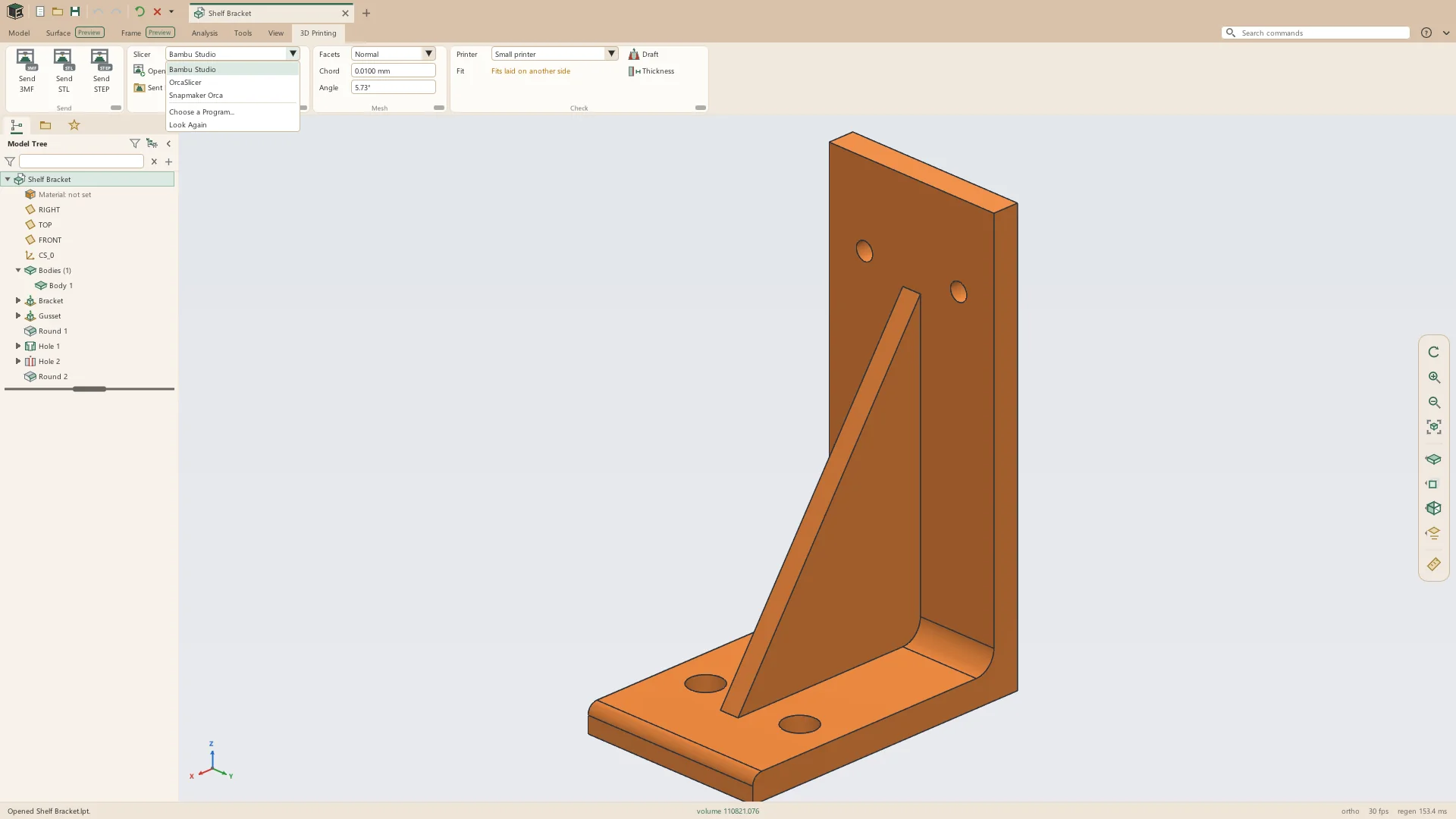
- Send 3MF, Send STL and Send STEP, each a button of its own
- 3MF with the part's colors, STL as the mesh alone, STEP as the exact solid for the slicer to cut into triangles itself
- The part written under its own name into the Sent Files folder, over the last one sent
- The slicer's own Reload from Disk then takes the part as it is now
- Open Slicer starts the slicer with nothing open; Sent Files opens the folder with the last part selected
- For solid and sheet-metal parts
- A Send button grayed, with the reason, when no slicer is found or the part cannot be written in that format
Slicers found on the computer
Leta finds the slicers installed on the computer and shows each by the name it was installed under. Until one is chosen, the first found is used.
- Slicers found among the installed programs, and in program folders where one was unzipped rather than installed
- The G-code viewers, uninstallers and crash reporters that come with a slicer passed over
- Choose a Program... for a slicer Leta does not find, and Look Again to search again
- A choice in the Slicer list kept at once
- Tried with four slicers in each of the three formats: every part arrived at its true size, its holes in place
- A slicer set to keep to one window takes each part into the window already open; otherwise each send opens another
Facets
How finely STL and 3MF are cut into triangles is set in the tab's Mesh group, and File > Export follows the same numbers. STEP is sent exact.
- Coarse: a chord of 0.05 mm and 15°
- Normal, Leta's default: 0.01 mm and 5.73°
- Fine: 0.002 mm and 2°
- Chord: how far a facet may stand off the true surface
- Angle: the most one facet may turn from the next round a curve, which keeps small holes round
- Numbers typed in the tab kept as Leta's options
Will it fit the printer
The Check group says whether the part fits the printer chosen in its Printer list, worked out again whenever the part changes.
- Fits as modeled, in green
- Fits laid on another side, in amber
- Too big for it, in red
- The part's size and the printer's in the tooltip
- The solid and the mesh bodies shown, as an export writes them
- Up to four printers, each a name and a width, depth and height in millimeters
- Add a Printer... at the foot of the list opens Options > 3D Printing
- Model Info says the same for every printer
Options > 3D Printing
One page of the options holds the slicer, the folder parts are sent to, and the printers.
- The slicers found, each with its program's path, one chosen with a radio button
- Choose a Program..., Look Again, and Use the First Found
- The folder for sent parts, with Browse and Open; left empty, Leta's own Sent to Slicer folder
- A folder that is not there yet is made at the first send
- The 3D printers' build volumes, four at most
- Restore Defaults clears the slicer, the folder and the printers
Printed threads
Thread models a thread on any cylinder, a shaft's or a hole's, and its Print Fit opens it up for a printed part. The clearance is an offset of every face of the thread, so a printed bolt in a printed nut has it twice.
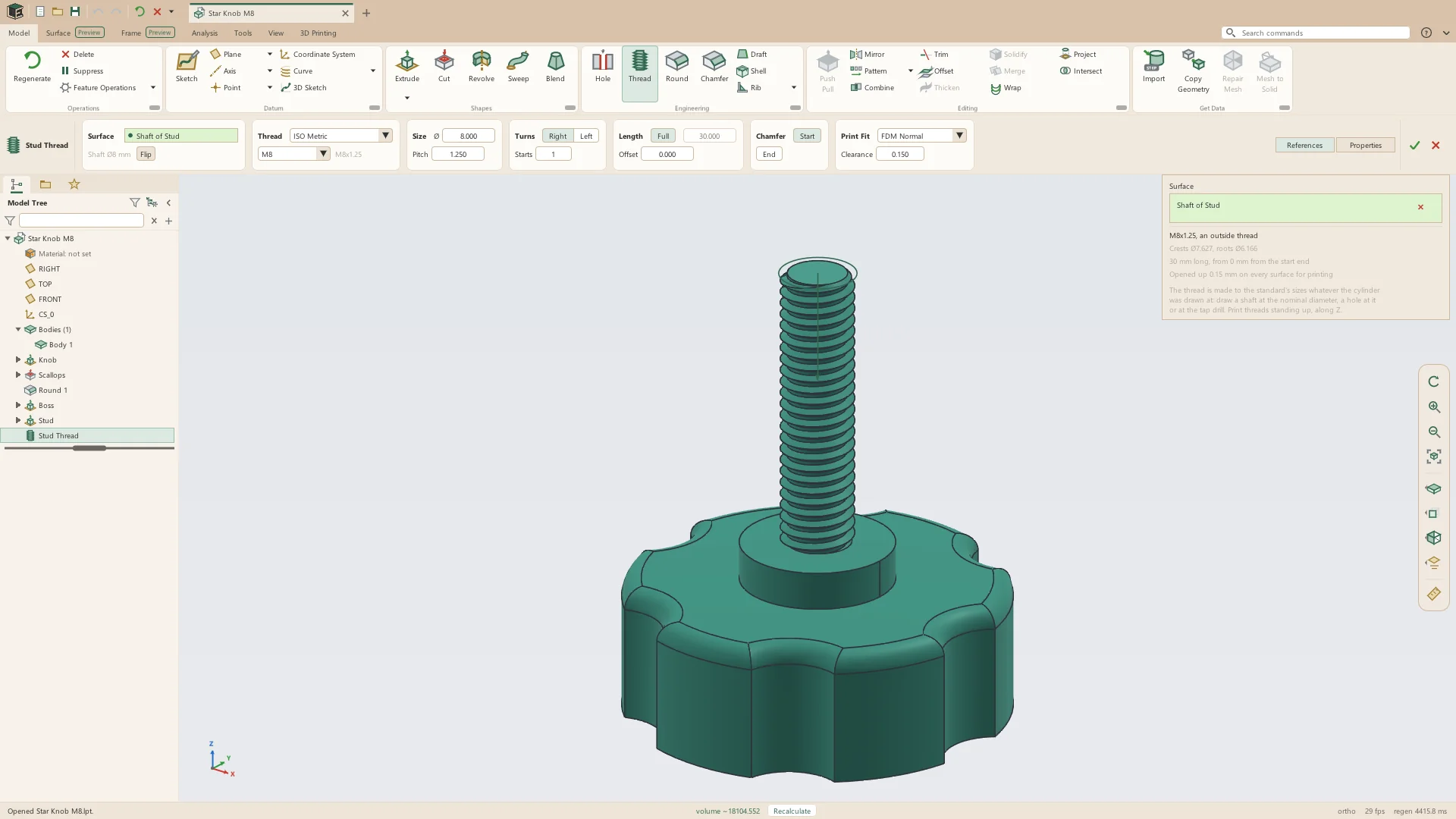
- From Model > Engineering > Thread, or from the card a click on a cylinder brings up
- Sized for the cylinder it is put on, in the standard of the part's units
- Fourteen standards, from ISO Metric, UNC and UNF to Trapezoidal, ACME, Buttress, BSP and NPT
- Print Fit: Standard 0, Resin Print 0.05, FDM Tight 0.10, FDM Normal 0.15 or FDM Loose 0.25 mm, or a clearance typed
- A Custom form of any flank angle and depth: at 90° its overhangs are 45°, where a standard thread's are 60°
- Lead-ins at either end, right- or left-hand, and several starts
- A cross hole through a thread kept open
- Drawings draw it by convention and call out its print clearance
A part for each body
A part of several bodies goes into a 3MF as one object with a named part for each body, so a printer with several toolheads can print each body in its own filament. Which filament each part takes is chosen in the slicer.
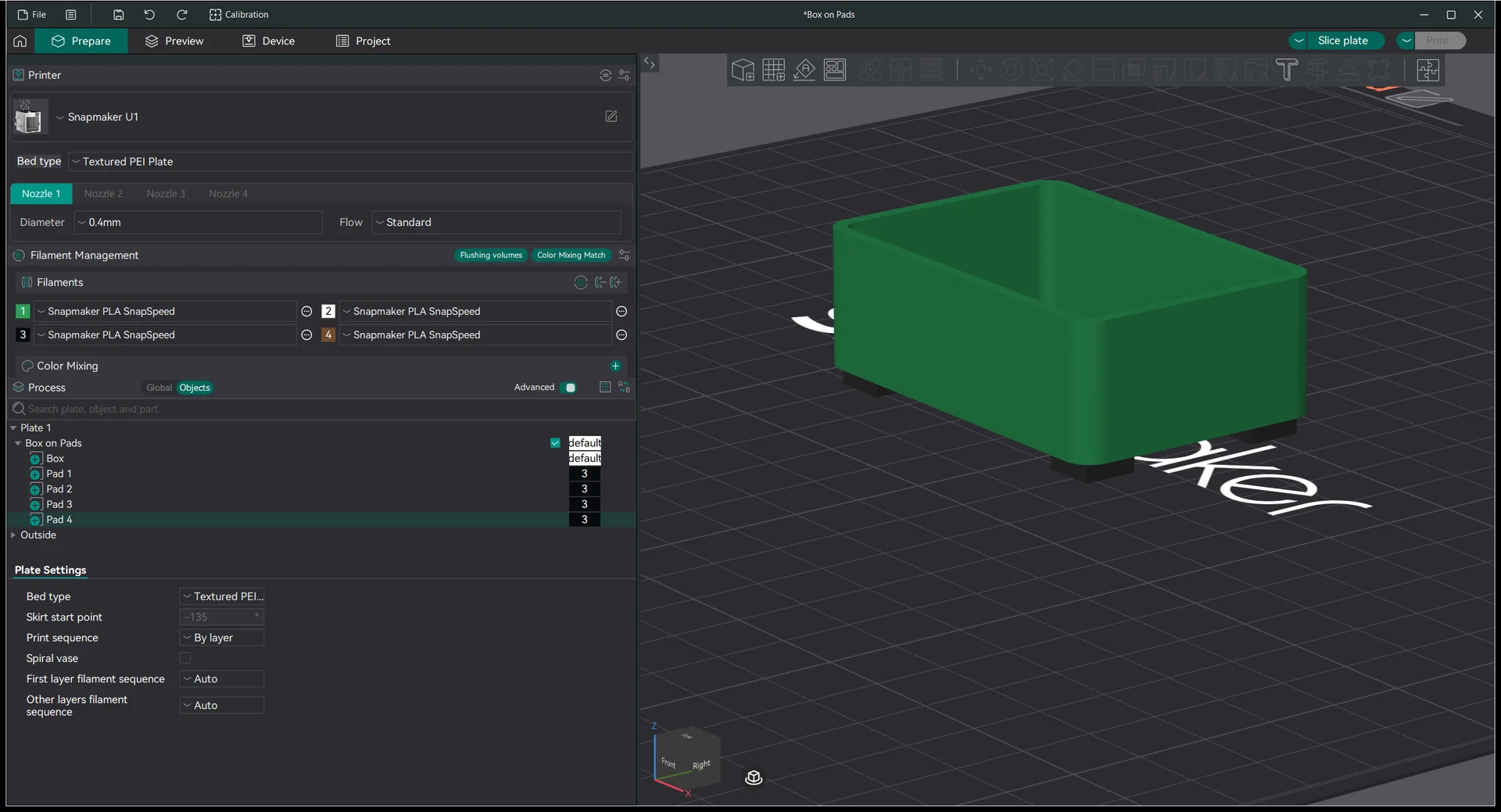
- Each body in place, so pads stay under the box rather than dropping to the bed on their own
- Each part named for its body, as the model tree's Bodies group names it
- Mesh bodies shown go in as parts too
- Each body's color written with it, for slicers that read a 3MF's colors
- A part of one body written as one object, as before
- The same from Send 3MF and from File > Export
Mesh bodies
An STL can come in as a mesh body, kept as triangles, so a file of millions of triangles opens in seconds. Repair Mesh closes one with holes or tangled edges, and Mesh to Solid makes it a solid to cut, drill and extrude from.
- Import asks for a mesh body or a solid; a mesh body by default above 120,000 triangles
- Mesh bodies of up to 30,000,000 triangles; one of 2,000,000 opens in 2 to 3 seconds
- Moved, turned and scaled in its strip, with On Top and Center
- Its size, triangles and volume shown, and its open or tangled edges counted in red
- Repair Mesh: corners welded, doubled triangles and walls inside dropped, tangled edges taken apart, cracks sewn, holes filled, and every piece turned to face out
- Holes filled flat where a face is missing, and curved on with the surface elsewhere
- The repair kept as a setting of the mesh, saying what it did, and undone in one step
- Mesh to Solid: reduced to 10,000, 50,000 or 150,000 triangles or a number typed, in the background with a Stop button
- The solid it makes is faceted and edits like any imported solid
- STL, 3MF and OBJ export write solids and mesh bodies together
Draft and thickness
Draft and Thickness, on the Analysis tab and in the 3D Printing tab's Check group, color the part while their window is open.
- Draft: blue toward the pull by at least the angle, yellow within it, red away from it
- 3D Printing: Z Up, 45 deg sets it for a print, where red is overhang that needs support
- Faces resting on the lowest level, the bed, left out
- Print on Selected Face takes the pull from the face the part will stand on
- The area of each color listed
- Thickness: walls thinner than a limit red, and under twice it orange
- 0.8 mm to start, two lines of a 0.4 mm nozzle
- The area too thin and the thinnest wall found
Heat-set inserts
The hardware library has heat-set inserts for printed parts, put into an assembly with Insert Hardware like any other piece of hardware.
- Metric M2 to M8, and inch #2-56 to 1/4-20
- In brass, in the lengths each size is sold in
- Sizes compiled from the makers' published tables
- Seated flush below the face of the part it goes into
- Changed for another size with Change Hardware, its mates kept
See it on your own parts
Beta builds go out by email. Say what you design and what you use now.